
Rokoko Studio Live Plugin for Blender



Stream motion capture data from Rokoko Studio directly into Blender in real-time
🎯 Overview
Rokoko Studio is a powerful and intuitive software for recording, visualizing and exporting motion capture data. This official Blender plugin enables seamless real-time streaming of animation data from Rokoko Studio directly into Blender.
Key Benefits:
- 🎭 Real-time streaming of motion capture data
- 🎮 Remote control of Rokoko Studio from Blender
- 🔄 Easy retargeting between different character rigs
- 👥 Multi-actor support for complex scenes
📖 Table of Contents
- 🎯 Overview
- ✨ Features
- 📋 Requirements
- 📦 Installation
- 🎬 Getting Started for Streaming
- 🎯 Retargeting
- 💡 Tips & Troubleshooting
- 🤝 Contributing
- 📞 Support
✨ Features
🎭 Live Data Streaming
- Full body tracking: Complete skeletal animation data
- Facial animation: 52 blendshapes for detailed facial expressions
- Finger tracking: Precise hand and finger movements with SmartGloves
- Multi-actor support: Up to 5 actors simultaneously
- Camera data: Live camera tracking information
- Props tracking: Real-time prop animation
🎮 Studio Integration
- Remote control: Control Rokoko Studio directly from Blender
- Real-time preview: See your animations as they're captured
- Seamless workflow: No need to switch between applications
🔄 Animation Tools
- Smart retargeting: Easily retarget animations between different rigs
- Auto-detection: Automatic bone mapping for faster setup
📋 Requirements
| Component | Version | Notes |
|---|---|---|
| Blender | 2.80 or higher | Required for plugin compatibility |
| Rokoko Studio | 2.4.8 or higher | For livestreaming functionality |
| Internet Connection | Required during installation | To download required libraries |
📦 Installation
Step 1: Download
📥 Download the latest version here
Step 2: Install in Blender
- Open Blender
- Navigate to
Edit > Preferences > Addons - Click
Install... - Select the downloaded ZIP file
- Enable the "Rokoko Studio Live" addon
⚠️ Note: First-time installation may take several minutes as required libraries are downloaded.
Step 3: Access the Plugin
- In the 3D viewport, press
Nto open the sidebar - Select the "Rokoko" tab to access all plugin features
🎬 Getting Started for Streaming
1. Prepare Your Model
Character Setup
Your character in Blender must be in T-pose for proper retargeting:

SmartGloves Setup
For optimal finger animation retargeting, ensure your character's hands match this pose:
- All fingers should be straight
- Thumb rotated 45 degrees away from other fingers

2. Enable Rokoko Studio Live
- Open Rokoko Studio and open a project
- On the right side, go to Streaming
- In the Blender row, press the wrench icon to open settings
- Enable Include Connection
- (optional) Customize Forward IP and Port
- Activate the data stream to Blender

3. Receive Data in Blender
- In the 3D viewport, press
Nto open the sidebar - Select the "Rokoko" tab
- Click "Start Receiver" to begin receiving data from Rokoko Studio


4. Stream Character Data
- Select the armature you want to animate
- Go to Object Properties → "Rokoko Studio Live Setup" panel
- In the Actor field, select the Smartsuit for this armature
- Click "Auto Detect" to fill bone fields automatically
- Verify all bones are correctly mapped (fill missing bones manually if needed)
- Ensure the armature is in T-Pose, then click "Set as T-Pose"

- Done! Your armature should now be animated by live data:

Performance Tips
💡 Optimize performance by enabling "Hide Meshes during Play" in the receiver panel:

⚠️ Reduce lag by closing keyframe windows (timeline, action editor) as they can consume significant resources in earlier Blender versions.
5. Stream Face and Prop Data
Face and prop data follow the same workflow as character data:
- For face data: Select the face mesh
- For prop data: Select the prop object
- Follow the same setup steps as character data above
- Done! Your face mesh or prop will be animated by live data


Custom Scaling for Props
💡 For prop data: Enable "Use Custom Scale" to adjust animation scale for your Blender project:

🎯 Retargeting
Easily retarget animations between different character rigs using the built-in retargeting system.
Step-by-Step Process
- Open the Retargeting panel in the Rokoko tab

- Set up source and target armatures:
- Source armature: Select the armature with existing animation
- Target armature: Select the armature that should receive the animation
- Click "Build Bone List"

- Verify bone mapping: Check that bones are correctly mapped and fix any missing or incorrect mappings

-
Configure retargeting options:
- Enable "Auto Scale" if armatures differ in size (or adjust manually)
- Select the appropriate pose in "Use Pose"
- ⚠️ Important: Ensure both armatures are in the same pose for accurate retargeting
-
Execute retargeting: Click "Retarget Animation"
-
Done! Your animation is now retargeted to the new armature
📺 Video Tutorial
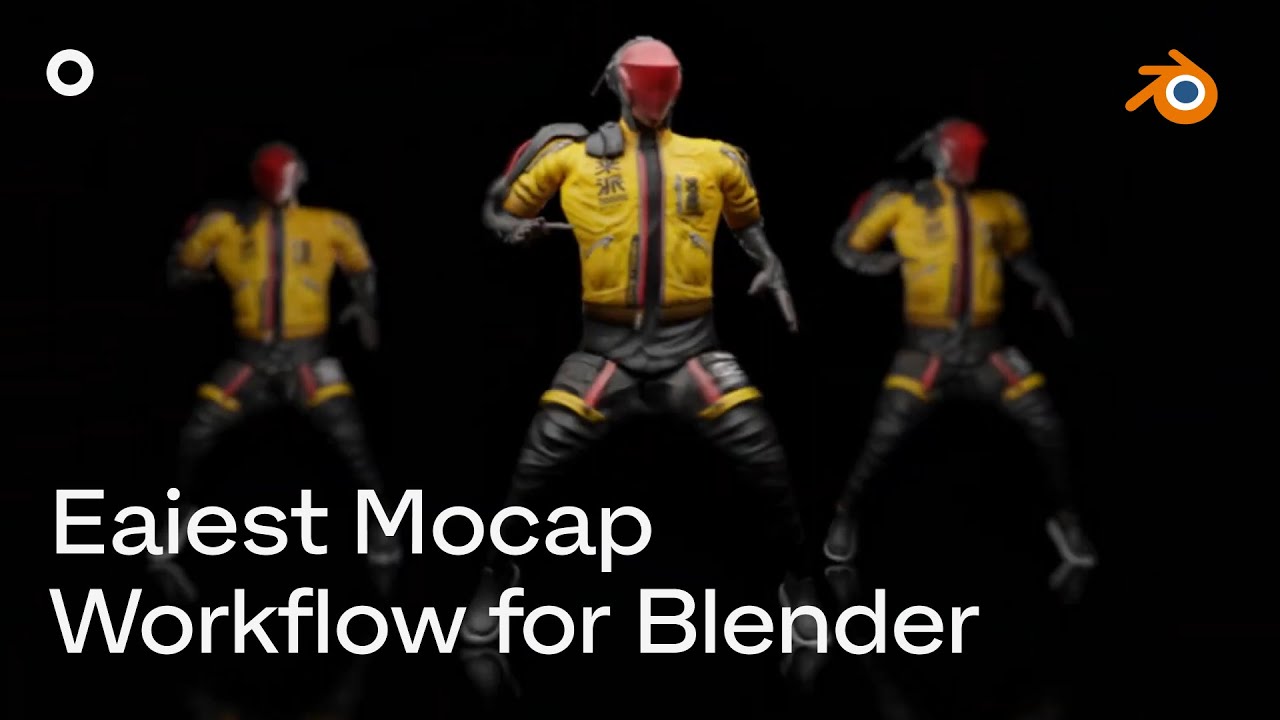
Click to watch the complete retargeting tutorial
💡 Tips & Troubleshooting
Performance Optimization
- Hide meshes during playback: Enable "Hide Meshes during Play" for better performance
- Close keyframe panels: Timeline and Action Editor consume significant resources
- Reduce viewport complexity: Hide unnecessary objects during streaming
Common Issues
Connection Problems
- Check network settings: Ensure Rokoko Studio and Blender are on the same network
- Verify port settings: Default port is 14043, ensure it's not blocked by firewall
- Restart both applications: Sometimes a fresh start resolves connection issues
Animation Issues
- T-pose requirement: Always ensure your character is in T-pose before setup
- Bone mapping: Verify all bones are correctly mapped using "Auto Detect"
- Scale differences: Use "Auto Scale" for characters of different sizes
Performance Issues
- System requirements: Ensure your system meets minimum requirements
- Background processes: Close unnecessary applications during streaming
- Blender settings: Reduce viewport samples and disable unnecessary addons
🤝 Contributing
We welcome contributions to improve the Rokoko Studio Live Plugin! Here's how you can help:
Reporting Issues
- Use the GitHub Issues page
- Provide detailed information about your setup and the issue
- Include steps to reproduce the problem
Feature Requests
- Submit feature requests through GitHub Issues
- Describe the use case and expected behavior
- Check existing issues to avoid duplicates
Development
- Fork the repository
- Create a feature branch
- Submit a pull request with detailed description
📞 Support
Official Support Channels
- 📖 Documentation: docs.rokoko.com
- 💬 Support Portal: support.rokoko.com
- 🐛 Bug Reports: GitHub Issues
Community
- Discord: Join our Discord community
- YouTube: Rokoko YouTube Channel for tutorials
- Social Media: Follow @rokoko for updates
Made with ❤️ by Rokoko
Bringing motion capture to everyone