# Rokoko Studio Live Plugin for Blender
[](https://www.blender.org/)
[](https://www.rokoko.com/en/products/studio)
[](LICENSE)
**Stream motion capture data from Rokoko Studio directly into Blender in real-time**
[📥 Download Latest](https://github.com/Rokoko/rokoko-studio-live-blender/archive/refs/heads/master.zip) •
[📖 Documentation](https://support.rokoko.com/hc/en-us/categories/4410420388113-Rokoko-Plugins) •
[💬 Support](https://support.rokoko.com/)
---
## 🎯 Overview
[Rokoko Studio](https://www.rokoko.com/en/products/studio) is a powerful and intuitive software for recording, visualizing and exporting motion capture data. This official Blender plugin enables seamless real-time streaming of animation data from Rokoko Studio directly into Blender.
**Key Benefits:**
- 🎭 **Real-time streaming** of motion capture data
- 🎮 **Remote control** of Rokoko Studio from Blender
- 🔄 **Easy retargeting** between different character rigs
- 👥 **Multi-actor support** for complex scenes
## 📖 Table of Contents
- [🎯 Overview](#-overview)
- [✨ Features](#-features)
- [📋 Requirements](#-requirements)
- [📦 Installation](#-installation)
- [🎬 Getting Started for Streaming](#-getting-started-for-streaming)
- [1. Prepare Your Model](#1-prepare-your-model)
- [2. Enable Rokoko Studio Live](#2-enable-rokoko-studio-live)
- [3. Receive Data in Blender](#3-receive-data-in-blender)
- [4. Stream Character Data](#4-stream-character-data)
- [5. Stream Face and Prop Data](#5-stream-face-and-prop-data)
- [🎯 Retargeting](#-retargeting)
- [💡 Tips & Troubleshooting](#-tips--troubleshooting)
- [🤝 Contributing](#-contributing)
- [📞 Support](#-support)
---
## ✨ Features
### 🎭 Live Data Streaming
- **Full body tracking**: Complete skeletal animation data
- **Facial animation**: 52 blendshapes for detailed facial expressions
- **Finger tracking**: Precise hand and finger movements with SmartGloves
- **Multi-actor support**: Up to 5 actors simultaneously
- **Camera data**: Live camera tracking information
- **Props tracking**: Real-time prop animation
### 🎮 Studio Integration
- **Remote control**: Control Rokoko Studio directly from Blender
- **Real-time preview**: See your animations as they're captured
- **Seamless workflow**: No need to switch between applications
### 🔄 Animation Tools
- **Smart retargeting**: Easily retarget animations between different rigs
- **Auto-detection**: Automatic bone mapping for faster setup
## 📋 Requirements
| Component | Version | Notes |
|-------------------------|------------------------------|-----------------------------------|
| **Blender** | 2.80 or higher | Required for plugin compatibility |
| **Rokoko Studio** | 2.4.8 or higher | For livestreaming functionality |
| **Internet Connection** | Required during installation | To download required libraries |
## 📦 Installation
### Step 1: Download
**[📥 Download the latest version here](https://github.com/Rokoko/rokoko-studio-live-blender/archive/refs/heads/master.zip)**
### Step 2: Install in Blender
1. Open Blender
2. Navigate to `Edit > Preferences > Addons`
3. Click `Install...`
4. Select the downloaded ZIP file
5. Enable the "Rokoko Studio Live" addon
> ⚠️ **Note**: First-time installation may take several minutes as required libraries are downloaded.
### Step 3: Access the Plugin
- In the 3D viewport, press `N` to open the sidebar
- Select the **"Rokoko"** tab to access all plugin features
## 🎬 Getting Started for Streaming
### 1. Prepare Your Model
#### Character Setup
Your character in Blender must be in **T-pose** for proper retargeting:
#### SmartGloves Setup
For optimal finger animation retargeting, ensure your character's hands match this pose:
- All fingers should be straight
- Thumb rotated 45 degrees away from other fingers
### 2. Enable Rokoko Studio Live
1. Open **Rokoko Studio** and open a project
2. On the right side, go to **Streaming**
3. In the Blender row, press the **wrench icon** to open settings
4. Enable **Include Connection**
- (optional) Customize Forward IP and Port
5. **Activate** the data stream to Blender
### 3. Receive Data in Blender
1. In the **3D viewport**, press `N` to open the sidebar
2. Select the **"Rokoko"** tab
3. Click **"Start Receiver"** to begin receiving data from Rokoko Studio
### 4. Stream Character Data
1. **Select the armature** you want to animate
2. Go to **Object Properties** → **"Rokoko Studio Live Setup"** panel
3. In the **Actor field**, select the Smartsuit for this armature
4. Click **"Auto Detect"** to fill bone fields automatically
5. Verify all bones are correctly mapped (fill missing bones manually if needed)
6. Ensure the armature is in **T-Pose**, then click **"Set as T-Pose"**
7. **Done!** Your armature should now be animated by live data:
#### Performance Tips
💡 **Optimize performance** by enabling "Hide Meshes during Play" in the receiver panel:
⚠️ **Reduce lag** by closing keyframe windows (timeline, action editor) as they can consume significant resources in earlier Blender versions.
### 5. Stream Face and Prop Data
Face and prop data follow the same workflow as character data:
1. **For face data**: Select the face mesh
2. **For prop data**: Select the prop object
3. Follow the same setup steps as character data above
4. **Done!** Your face mesh or prop will be animated by live data
#### Custom Scaling for Props
💡 **For prop data**: Enable "Use Custom Scale" to adjust animation scale for your Blender project:
---
## 🎯 Retargeting
Easily retarget animations between different character rigs using the built-in retargeting system.
### Step-by-Step Process
1. **Open the Retargeting panel** in the Rokoko tab
2. **Set up source and target armatures**:
- **Source armature**: Select the armature with existing animation
- **Target armature**: Select the armature that should receive the animation
- Click **"Build Bone List"**
3. **Verify bone mapping**: Check that bones are correctly mapped and fix any missing or incorrect mappings
4. **Configure retargeting options**:
- Enable **"Auto Scale"** if armatures differ in size (or adjust manually)
- Select the appropriate pose in **"Use Pose"**
- ⚠️ **Important**: Ensure both armatures are in the same pose for accurate retargeting
5. **Execute retargeting**: Click **"Retarget Animation"**
6. **Done!** Your animation is now retargeted to the new armature
### 📺 Video Tutorial
[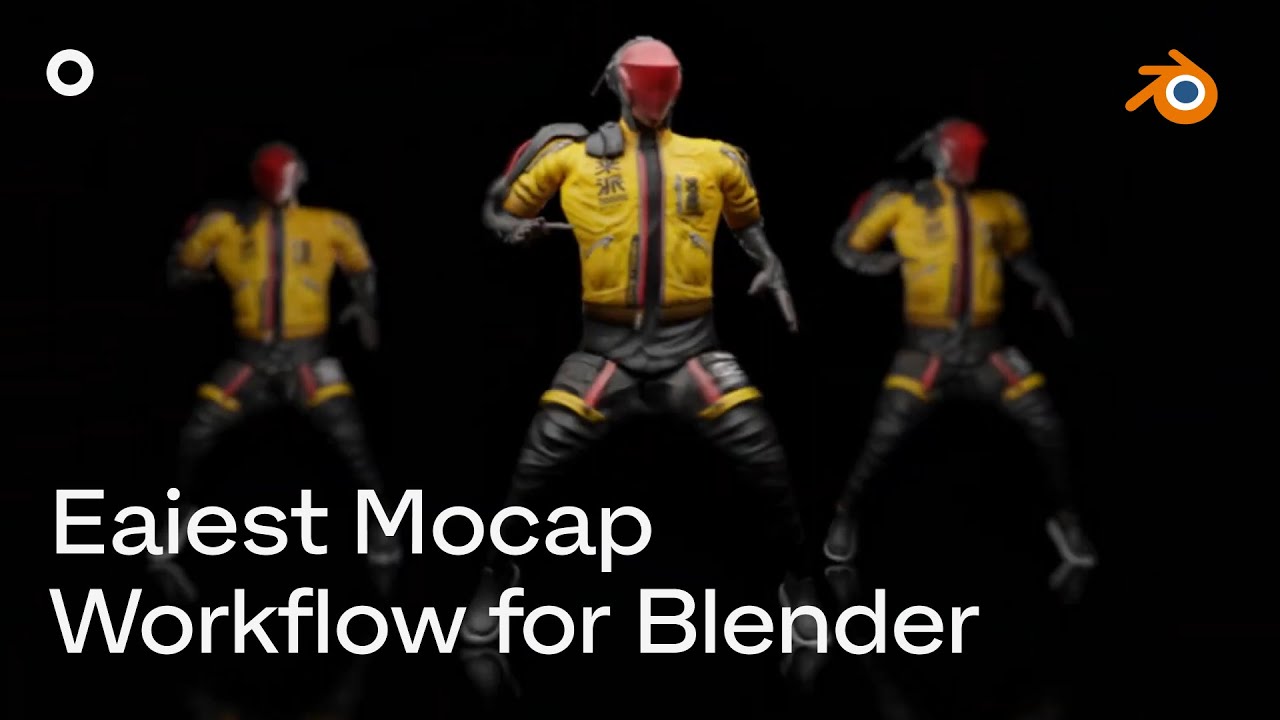](https://youtu.be/Od8Ecr70A4Q)
*Click to watch the complete retargeting tutorial*
---
## 💡 Tips & Troubleshooting
### Performance Optimization
- **Hide meshes during playback**: Enable "Hide Meshes during Play" for better performance
- **Close keyframe panels**: Timeline and Action Editor consume significant resources
- **Reduce viewport complexity**: Hide unnecessary objects during streaming
### Common Issues
#### Connection Problems
- **Check network settings**: Ensure Rokoko Studio and Blender are on the same network
- **Verify port settings**: Default port is 14043, ensure it's not blocked by firewall
- **Restart both applications**: Sometimes a fresh start resolves connection issues
#### Animation Issues
- **T-pose requirement**: Always ensure your character is in T-pose before setup
- **Bone mapping**: Verify all bones are correctly mapped using "Auto Detect"
- **Scale differences**: Use "Auto Scale" for characters of different sizes
#### Performance Issues
- **System requirements**: Ensure your system meets minimum requirements
- **Background processes**: Close unnecessary applications during streaming
- **Blender settings**: Reduce viewport samples and disable unnecessary addons
---
## 🤝 Contributing
We welcome contributions to improve the Rokoko Studio Live Plugin! Here's how you can help:
### Reporting Issues
- Use the [GitHub Issues](https://github.com/Rokoko/rokoko-studio-live-blender/issues) page
- Provide detailed information about your setup and the issue
- Include steps to reproduce the problem
### Feature Requests
- Submit feature requests through GitHub Issues
- Describe the use case and expected behavior
- Check existing issues to avoid duplicates
### Development
- Fork the repository
- Create a feature branch
- Submit a pull request with detailed description
---
## 📞 Support
### Official Support Channels
- **📖 Documentation**: [docs.rokoko.com](https://support.rokoko.com/hc/en-us/categories/4410420388113-Rokoko-Plugins)
- **💬 Support Portal**: [support.rokoko.com](https://support.rokoko.com/)
- **🐛 Bug Reports**: [GitHub Issues](https://github.com/Rokoko/rokoko-studio-live-blender/issues)
### Community
- **Discord**: Join our [Discord community](https://discord.com/invite/AfCJBBQqRm)
- **YouTube**: [Rokoko YouTube Channel](https://www.youtube.com/@RokokoMotion) for tutorials
- **Social Media**: Follow [@rokoko](https://x.com/hellorokoko) for updates
---
**Made with ❤️ by [Rokoko](https://www.rokoko.com/)**
*Bringing motion capture to everyone*


